Signatures
Reusable text for the OpenQuok post composer — CTAs, hashtag blocks, and link lines, shared across your workspace.
Connect your agent today
Draft from chat, review in your calendar, and publish only what you approve.
Signatures
Reusable sign-offs you append in the post composer — CTAs, hashtag blocks, or link lines.
Where: Settings → Signatures (/account/settings?section=signature).
Signatures are snippets which everyone on the team sees the same list. Save a hashtag block, disclosure, or sign-off once, then drop it into posts from Settings or the post editor toolbar.
Note
Signatures belong to the active workspace in the header switcher. Switch workspaces before editing sign-offs for another team.
What you can save
| Field | What it does |
|---|---|
| Title | Label in Settings and the composer picker — required, up to 80 characters |
| Content | The text that gets inserted — required, up to 500 characters |
| Auto add signature? | When set to Yes, OpenQuok prepends this snippet when you open a new, empty composer |
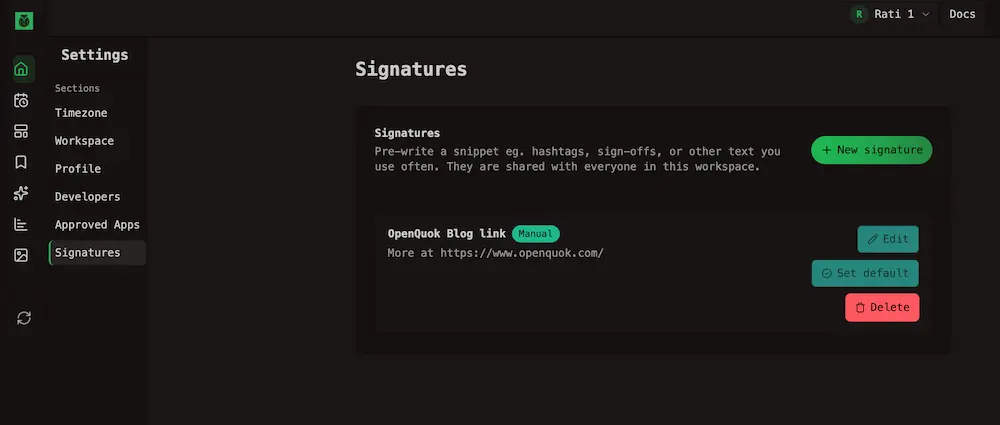
Each saved signature shows an Auto add or Manual badge on the list. Only one signature can auto-add at a time — marking a new default clears the previous one.
Create a signature
Open Signatures
From the account menu, open Settings and choose Signatures in the left list.
Add the snippet
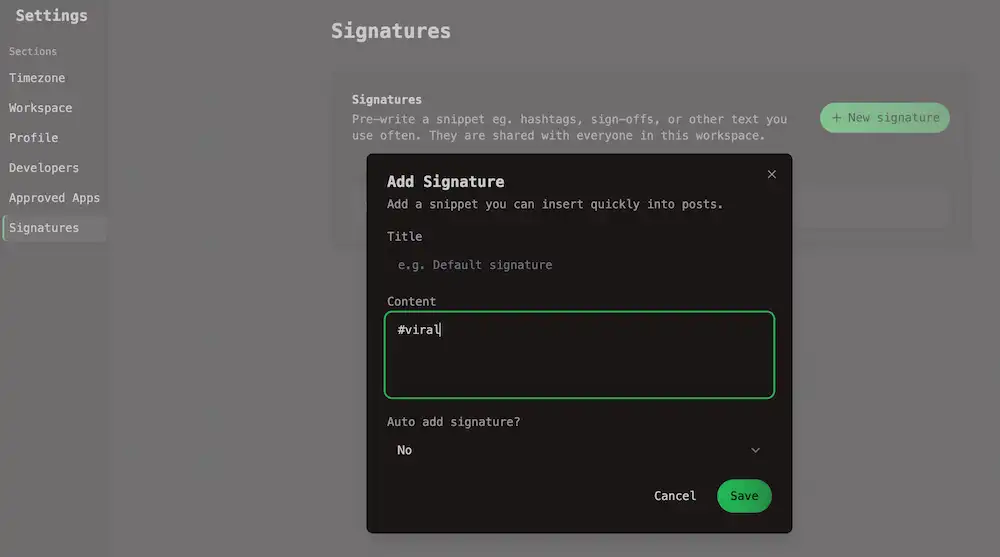
Click New signature. Enter a Title and Content. Use the title to tell similar sign-offs apart — for example Newsletter CTA vs Legal disclosure.
Choose auto-add
Set Auto add signature? to Yes when this sign-off should appear every time you start a blank post. Leave it on No when you only want to insert it sometimes. Click Save.
Auto-add on new posts
When one signature is marked for auto-add, OpenQuok automatically inserts it when you create a new post with an empty caption. You can still edit that text before you save.
Auto-add does not run when:
- You edit or duplicate an existing post
- The composer already has caption text
- You load a saved channel set into the composer
- You are building a reusable template (per-channel editing is disabled in that flow)
Tip
To change which snippet auto-adds, open the signature in Settings and set Auto add signature? to Yes, or click Set default on the signature list in Setting.
Insert from the post editor
Click the signature icon on the composer toolbar to open the picker.
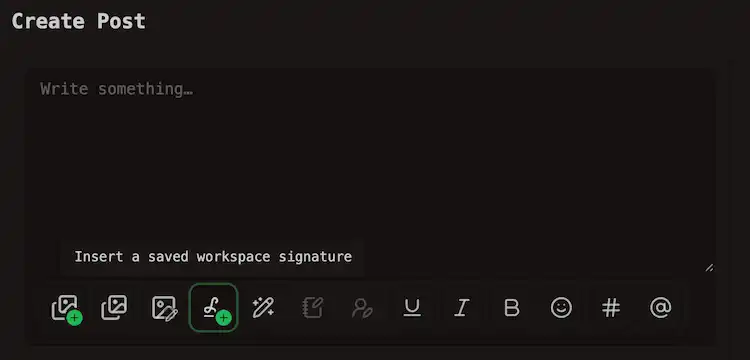
Choose a saved snippet and OpenQuok appends it to the caption — with a blank line before it when the body already has text.
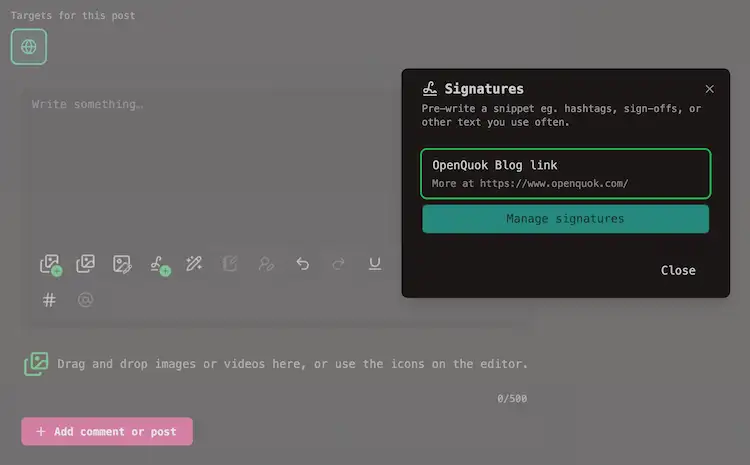
The picker also links to Manage signatures when you need to edit sign-offs.
Note
On the post editor in guest mode (for example the free Humanizer tool), the signature toolbar require sign in. Sign up for a free account — saved signatures load only after you are in a workspace.
Edit or remove
On the Signatures settings page, each row offers Edit, Set default (if not auto-add), and Delete.
When auto-add is a not a right tool
Warning
An auto-added signature goes into every new post on every selected channel. A LinkedIn hashtag block or a long link line may not suit every social platform.
Tip
If your sign-off is platform-specific, keep Auto add signature? on No and insert it manually from the toolbar when you need it. See Global vs per-channel.
Follow-up comment and thread-reply editors do not show the signature toolbar — those rows publish as plain text. See Threads and comments.
Plan availability
Signatures are available on every OpenQuok Cloud plan and on self-hosted installs. See Settings overview for how other sections behave on Cloud vs self-host.