Browse and organize
Navigate folders, switch layouts, search, preview, and move or delete files in the workspace media library.
Connect your agent today
Draft from chat, review in your calendar, and publish only what you approve.
Browse and organize
Use the folder tree, breadcrumbs, and layout buttons to find files and keep each workspace tidy.
The main browser is a file manager.
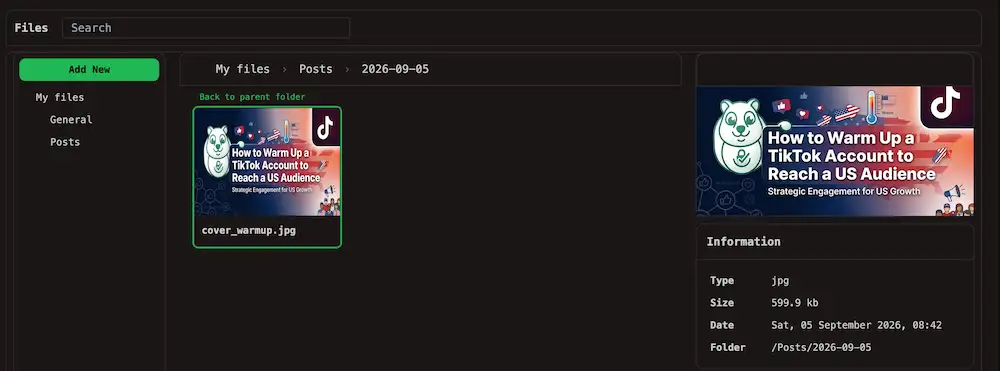
- a navigation tree on the left
- the current folder in the center
- a toolbar for search and display options
View modes
Use the four buttons next to the page title. Grid view is the default.

| Mode | Best for |
|---|---|
| List view | File size and dates in a table; sort by clicking column headers |
| Grid view | Thumbnails in a card layout (default) |
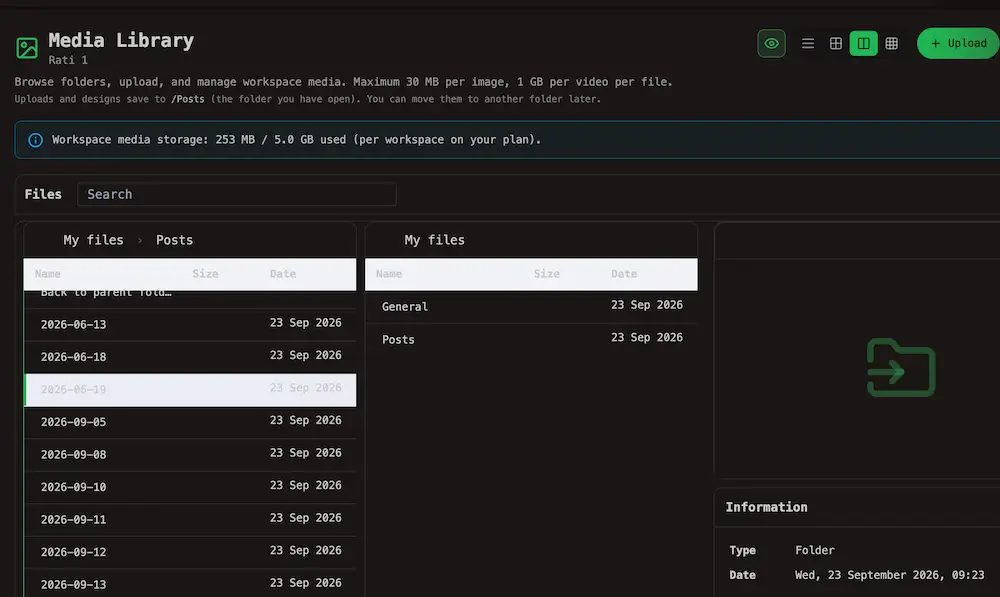
| Panels view | Two folders side by side — useful when you copy or move between locations |
| Gallery view | A flat, paginated grid of every file in the workspace (no folder tree on this mode) |
In list, grid, or panels mode, turn the preview control (eye icon) on or off to show file details beside the list.
See Gallery view below for the workspace-wide thumbnail grid, pagination, and tile actions.
Folders
Every workspace includes two top-level folders:
| Folder | What goes here |
|---|---|
| General | Uploads, designs, and imports from the Media library page. This is the default when you upload from that page. |
| Posts | Media you attach from the post ediotor — see Media. |
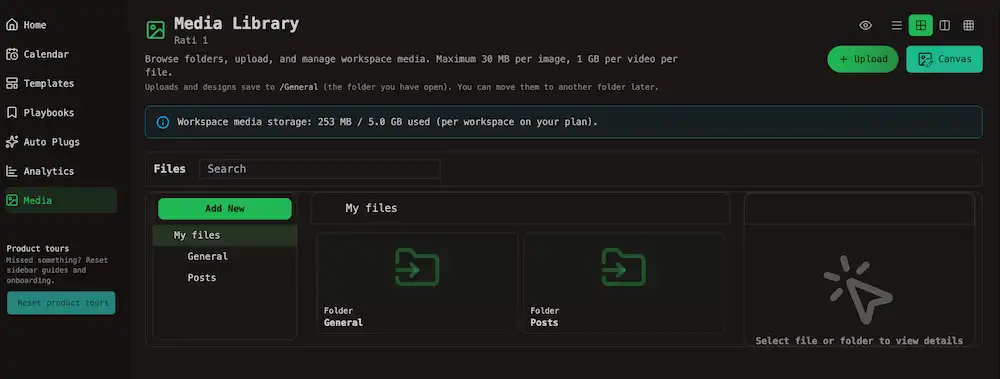
| Folder | What goes here |
|---|---|
| Posts/unscheduled | Composer attachments when the post has no publish date yet. |
| Posts/YYYY-MM-DD | Composer attachments for scheduled posts (UTC calendar day). |
Tip
You can create additional folders with New folder.
Warning
You can create additional folders with New folder. General, Posts, and Posts/unscheduled are built in and cannot be deleted.
| Action | How |
|---|---|
| Open a folder | Click it in the tree or in the main pane |
| Open the parent folder | Click a breadcrumb segment, or choose Back to parent folder |
| Create a folder | In the navigation pane, choose Add New → New folder, enter a name, confirm |
| Delete a folder | Select the folder, then delete from the context menu or keyboard (see below) |
Tip
Uploads and designs from Add media save to the folder you have open in the file manager at that moment. Move them later if needed.
File actions
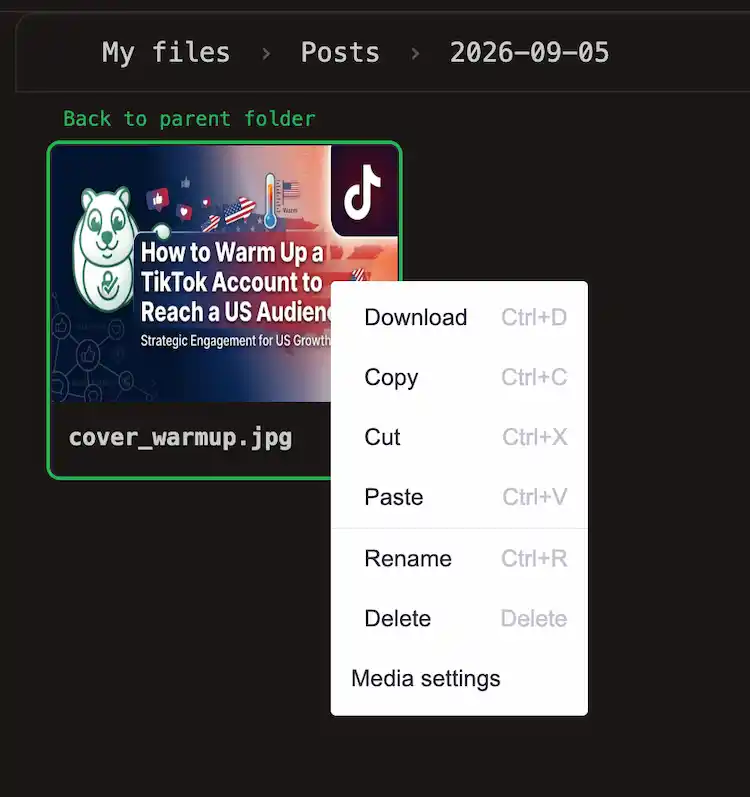
Select one or more files or folders, then use the right-click menu or shortcuts.
| Action | Shortcut (where supported) |
|---|---|
| Copy | Ctrl+C |
| Cut (move) | Ctrl+X |
| Paste | Ctrl+V |
| Rename | Ctrl+R (one item at a time) |
| Delete | Del or Backspace |
| Download | Ctrl+D (files only) |
| Search | Ctrl+F in the toolbar search box |
| Open file location from search results | Ctrl+Alt+O |
| Select all in the current folder | Ctrl+A |
Note
See more regarding Media details.
Tip
You can copy and paste work across folders in panels view by opening source and destination in each panel, then cut or copy and paste..
Gallery view
Gallery mode hides the folder tree and file-manager layout. You get one paginated thumbnail grid of every file in the workspace, across General, Posts, and any custom folders.
It is the fastest way to scan the whole library when you are not sure which folder holds an asset. Page through results at the bottom — page sizes are 12, 24, 48, or 96 items.
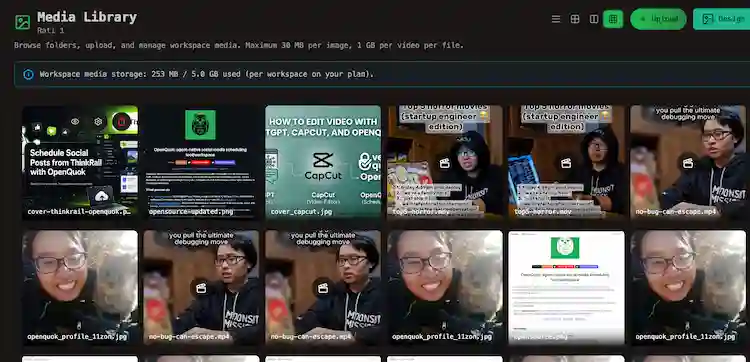
Each tile offers preview, settings, and delete:
- Preview opens a larger view
- Settings opens Media details for alt text and video posters
- Delete asks you to confirm. You can still upload by dragging files onto the grid.
Note
Copy, move, rename, and folder actions live in list, grid, or panels view. Switch back when you need the full file manager. See Media details.