Explore and bookmarks
Use the Explore tab on Account Playbooks to search the catalog, filter listings, bookmark favorites, and open public hub pages.
Connect your agent today
Draft from chat, review in your calendar, and publish only what you approve.
Explore tab
Search community playbooks and building blocks, narrow results, and save the ones you want to install later.
On Account → Playbooks, stay on Explore (the default tab). The catalog loads building blocks and playbooks from the public hubs.
Search and kind filters
| Control | Effect |
|---|---|
| Search | Matches titles and descriptions for both listing types |
| All | Shows building blocks and playbooks together |
| Building blocks | Only single skills or MCP listings |
| Playbooks | Only curated stacks |
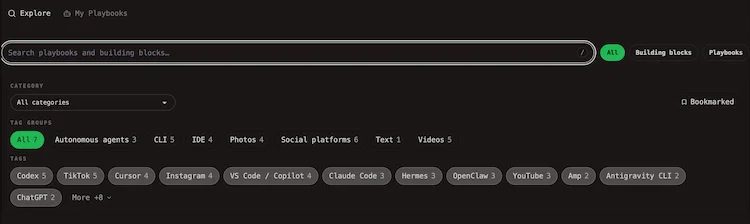
Category and tags
Use the Category dropdown to filter results to one hub category (for example social publishing or productivity).
Below that, tag groups work like the public hubs:
- Pick a tag group (when available).
- Toggle one or more tags to narrow the grid.
- Use Clear to reset tag filters without changing search or category.
Bookmarked filter
Click the Bookmarked chip to show only listings you saved. The chip can include a count when you have bookmarks.
Paid plan
Saving bookmarks and filtering by Bookmarked need a paid Cloud plan. On a free plan you see an upgrade banner when you try to bookmark or turn the filter on. See Cloud limits and Billing.
Card actions
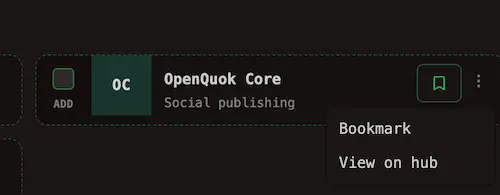
Open the ⋯ menu on a card:
| Action | When to use it |
|---|---|
| Bookmark / Remove bookmark | Save a listing for later (paid plans) |
| View on hub | Open the public detail page on Building Blocks or Playbooks |
Compose from Explore
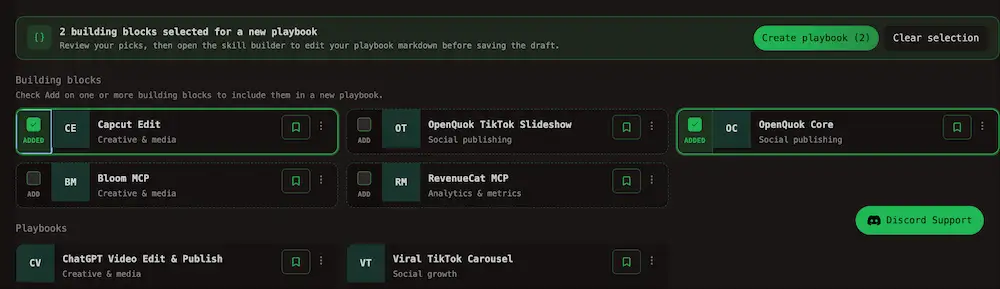
Building block cards include an Add checkbox. Select one or more blocks, then use Create playbook in the bar above the grid. That flow continues in Compose a playbook.
Tip
You can run the same steps from My Playbooks when you want to stack your own drafts with catalog entries.
Empty results
If filters are too tight, the grid shows a short empty message. Clear tags, switch All, or turn off Bookmarked to widen the list.