Add media
Upload images and videos, save designs, import from connectors, and understand size and storage limits.
Connect your agent today
Draft from chat, review in your calendar, and publish only what you approve.
Add media
Put new images and videos into the workspace library from Upload, Canvas, or drag-and-drop on /account/media.
Warning
All paths respect your workspace storage quota. When storage is full, the page shows a warning and limit your new adds until you delete files or upgrade your plan.
Upload
| Method | Steps |
|---|---|
| Upload button | Click Upload, then browse or drop files in the dialog. Upload starts when files are added. |

| Method | Steps |
|---|---|
| Drag and drop | Drop images or videos onto the file manager or onto the gallery grid (including the empty library state). |
Warning
Only images and videos are accepted on this page. Other types are rejected with an error message..
Size limits
| Rule | Limit |
|---|---|
| Image (browser check) | 30 MB per file before upload |
| Image (server) | 10 MB per file |
| Video | 1 GB per file |
| One batch (multi-select or drop) | 1 GB combined |
Note
Accepted types match the composer: JPEG, PNG, GIF, WebP, SVG, AVIF, MP4, MOV, WebM, M4V, MPEG. See Creating posts → Media → Limits and formats for the full table.
Warning
The page subtitle shows the per-file hint (for example 10 MB per image, 1 GB per video). Limits are per file, not per workspace.
Destination folder
In list, grid, or panels view, uploads go to the folder you have open. The page shows that path under the title. Change folder before you upload, or move files afterward — see Browse and organize.
Canvas Editor
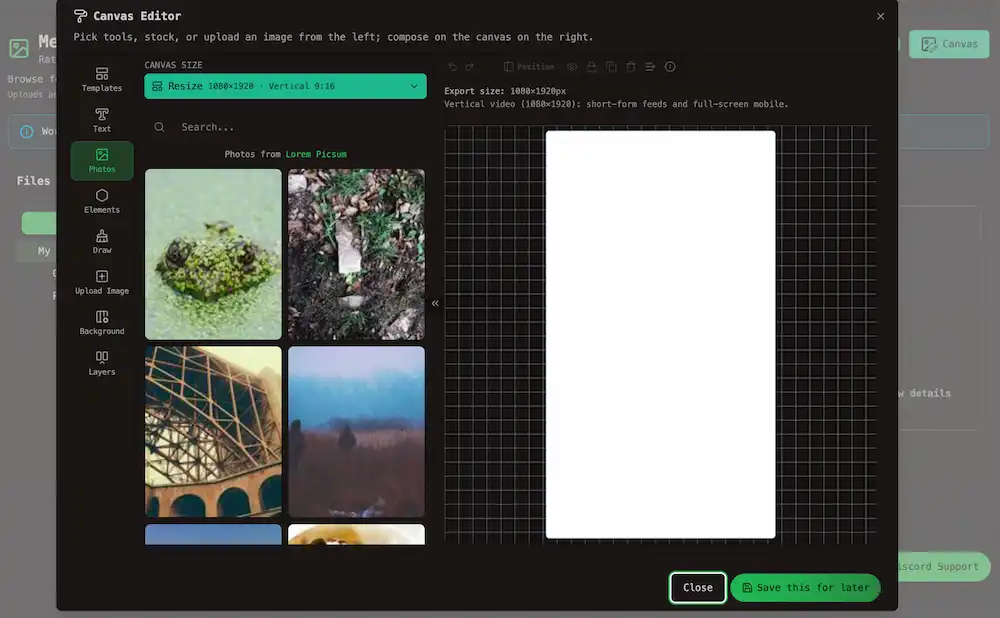
Click Canvas to open the canvas editor (templates, text, and shapes — same family of tools as Photo Editor and Design Media in the post editor).
When you finish, choose Save this for later. The export is stored in the library like an upload. Design is disabled when storage is full or no workspace is selected.
Import
When your workspace has at least one connector scoped to the media library, an Import button appears in the same toolbar row as Upload and Design (top right of the Media library page).
Open Import, choose the connected source, then select files to copy into OpenQuok. Import is blocked when storage is full.
Note
If you only see Upload and Design, no media-library connector is enabled for that workspace yet — Import stays hidden until one is configured on the server.
Storage banner
Below the title, OpenQuok shows workspace media storage used versus your hosted cloud plan per workspace.
| State | What you see |
|---|---|
| Under the cap | Used and total size |
| At the cap | A warning, Storage full on Upload, and an Upgrade plan link |
After you add files
Reuse them in the composer via Media library, or open Media details on the file to set alt text or a video poster — Media details.
Deleting files
Note
Deleting removes the file from workspace storage and from the media library, meaning the the network already has its own copy of the image or video. It does not unpublish or edit posts that already went live.
| Situation | What happens |
|---|---|
| Already published | The live post on the network stays as it was. OpenQuok keeps the post record, but calendar thumbnails, composer previews, and shared preview pages may show broken media. |
| Scheduled or draft | Publish can fail if the post still references a deleted file. |