Devin Desktop
Connect OpenQuok MCP to Devin Desktop via ~/.codeium/mcp_config.json.
Connect your agent today
Draft from chat, review in your calendar, and publish only what you approve.
Prerequisites
- Devin Desktop installed with MCP enabled.
- An OpenQuok programmatic token (opo_).
Configuration file
Devin Desktop stores MCP servers in ~/.codeium/mcp_config.json (user-level). See the official MCP guide and Devin Desktop FAQ (configuration paths).
Entries use top-level mcpServers. Remote HTTP servers require serverUrl (or url) pointing at your OpenQuok MCP endpoint — typically …/mcp on your API host.
You can edit the file directly or open it from Settings → Tools → View Raw Config.
Setup
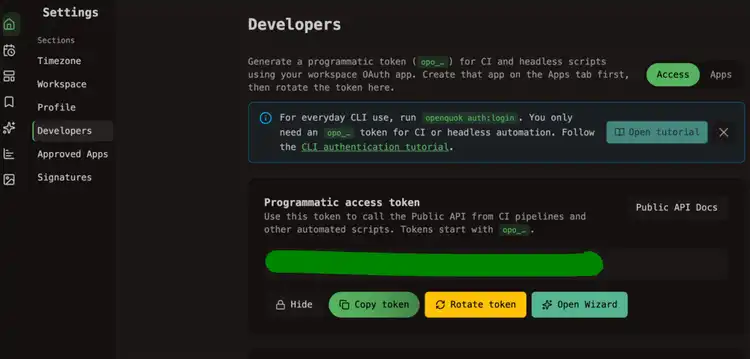
Generate your token
In the OpenQuok app, open Account → Settings → Developers → Access. Create an OAuth app if prompted, then generate an opo_… token.
Edit mcp_config.json
Create the file if it does not exist, then add or merge the openquok block:
Restart Devin Desktop
Fully quit and reopen Devin Desktop, or use the MCP refresh action in Settings → Tools, so the config is re-read.
Verify
In Devin Local or chat, ask:
List my connected social media accounts
The agent should call integrationList.
Self-hosted API
Set serverUrl to your BACKEND_DOMAIN_URL + /mcp.
For local development, that is often:
{
  "mcpServers": {
    "openquok": {
      "serverUrl": "http://localhost:3000/mcp",
      "headers": {
        "Authorization": "Bearer opo_your_programmatic_token"
      }
    }
  }
}